Getting consistent video quality is one of the fastest ways to make a streaming service feel “premium.” If your playback looks blurry, buffers too often, or changes resolution mid-scene, the fix is usually inside your device and player playback options—not just your internet speed. This flix2day Streaming Quality Guide focuses on one clear goal: setting video playback options so you can watch in the quality you expect.
In practice, “video quality” is a mix of resolution, bitrate behavior, playback mode, and how your device handles adaptive streaming. By adjusting the right settings, you can reduce unnecessary buffering, avoid surprise drops in clarity, and make subtitles or audio tracks feel smoother across devices.
Start With the Playback Quality Controls That Matter Most
Before you change anything, it helps to understand what your player is actually doing. Most modern streaming playback engines use adaptive bitrate streaming, which automatically selects a quality level based on current network conditions. That means you may see quality fluctuate if the setting is too aggressive or if the device prioritizes speed over clarity.
When you look for playback options, focus on controls related to: preferred resolution (for example 480p, 720p, 1080p), autoplay quality behavior, and adaptive quality switching. If your player offers a manual “quality” selection, it can be useful for stable networks. If it only offers “Auto,” you’ll want to ensure your connection and device settings support stable playback at higher bitrates.
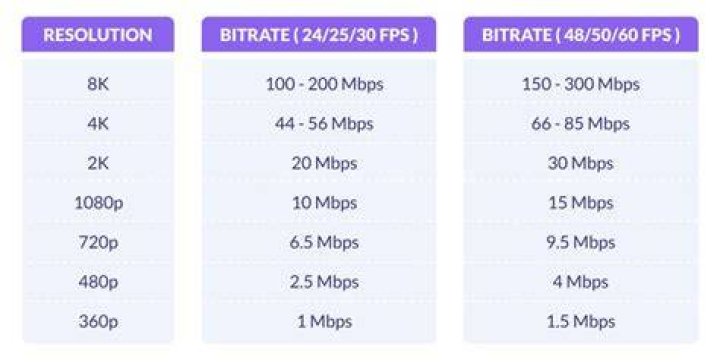
Quick takeaway: “Quality” is not one setting—it’s a set of decisions between your player, your device, and your connection.
Choose Resolution Intelligently: Manual vs Auto Playback
Resolution determines how many pixels are used to display each frame. Higher resolution (like 1080p) generally looks sharper, but it also requires more bandwidth and decoding power. If your connection is inconsistent, forcing a high resolution can trigger repeated buffering or frame drops.
Auto playback is usually best when your network varies. It will scale down when bandwidth dips and scale up when conditions improve. Manual resolution is best when you know your network is stable—like home Wi‑Fi with a strong signal or an Ethernet connection through a router.
Here’s a practical way to decide. If you consistently see buffering at higher quality, switch to a mid-tier manual option first (such as 720p) and then test. If playback remains smooth for several episodes, you can step up gradually. If you prefer the smoothest playback experience over maximum sharpness, keep Auto enabled and let the player adapt.
Understand Bitrate Behavior and Why Clarity Can Change Mid-Stream
Bitrate refers to how much data is used per second to encode video. A higher bitrate usually improves detail and reduces compression artifacts like blockiness, especially in fast motion scenes. However, bitrate is directly tied to network performance and sometimes CPU/GPU capabilities during playback.
Adaptive streaming engines constantly re-evaluate conditions, which can lead to visible shifts. You might notice the image looks crisp at the start of a title, then softens during action sequences. That usually means the engine dropped to a lower bitrate to maintain continuous playback.
If your playback options include a “Prefer higher quality” mode or a “Stability” mode, choose based on your priorities. Stability reduces switching and buffering by being conservative. Higher quality prioritizes detail and may switch more often when the connection is under load.
Set Playback Options on Different Devices Without Losing Quality
Even when the streaming service offers the same quality choices, device behavior can differ. Mobile devices may use power-saving modes that limit decoding performance. Smart TVs may handle decoding well but can vary based on Wi‑Fi signal strength. Web browsers often add extra overhead from extensions or hardware acceleration settings.
Mobile and Tablet Playback Settings
On phones and tablets, check if playback quality options are affected by mobile data rules, “Low Data Mode,” or background app restrictions. If you’re on cellular, consider using a lower manual resolution or keeping Auto enabled to avoid stalls when the signal changes. On Wi‑Fi, a stable network usually makes higher quality more reliable.
Also consider turning off any “data saver” features that can limit streaming bitrate. Many operating systems include network-level options that reduce bandwidth usage across apps, which indirectly lowers streaming quality.
Smart TV and Streaming Stick Options
For TVs and streaming sticks, the most common quality issues come from Wi‑Fi signal quality and device decoding capabilities. If your device supports it, use a 5 GHz Wi‑Fi network rather than 2.4 GHz for better throughput. For the highest stability, use Ethernet when possible.
Additionally, check TV settings related to picture modes. Sometimes a TV “game mode” or dynamic enhancement can affect perceived sharpness. While that’s not a true bitrate change, it can make quality look better or worse compared to the same stream on another device.
Web Browser Playback Settings
Browser streaming quality can be affected by hardware acceleration settings and competing tabs. If you watch in a browser, close heavy background tabs and consider disabling extensions that modify video playback. Hardware acceleration, when enabled, can improve decoding and reduce stutters.
Also remember that browser performance differs by device. A laptop may decode 1080p smoothly, while an older desktop might struggle at the same quality settings. Adjust playback resolution to match the device’s strengths.
Make Captions and Audio Tracks Work Smoothly With Quality Settings
Subtitles and audio tracks can influence perceived playback smoothness. While captions don’t usually reduce video bitrate directly, they can increase processing overhead and may affect synchronization. If you notice delays or lag with captions, it may be worth changing the playback option profile first, then re-testing captions.
If flix2day supports multiple subtitle formats or audio languages, choose the simplest track that works reliably on your device. For example, some devices handle certain caption types more efficiently than others.
Audio quality is another layer. Higher-quality audio can require extra decoding resources, especially on older devices. If you’re trying to maximize smooth playback, prioritize stable video quality first and then select the highest audio option your device handles without stutter.
Reduce Buffering by Fixing Network Bottlenecks and Playback Configuration
Even with the right playback options, network issues can derail quality. Buffering often comes from limited bandwidth, packet loss, or Wi‑Fi interference. A quick way to separate “network problem” from “player setting problem” is to test the same title for several minutes on the same device while keeping the settings constant.
If the stream buffers repeatedly, don’t immediately jump to the lowest quality. Instead, drop to a mid-tier manual resolution and keep watching. If buffering stops, your prior setting was simply too demanding for the current network conditions. Then you can decide whether to stay there or slowly increase quality.
If your player offers “Download” or “Offline” viewing options for certain titles, using them can also improve the experience in poor network areas. Offline playback removes the need for continuous bitrate selection during viewing.
Use a Simple Testing Routine to Lock in Your Best Playback Profile
To set playback options confidently, use a repeatable routine rather than changing settings mid-title. Start with one device at one location. Choose either Auto or a manual resolution, then start playback and observe how the stream behaves for at least 5–10 minutes.
During the test, look for three signals: initial buffering, mid-stream quality changes, and playback smoothness during fast motion scenes. If the stream looks great but switches quality frequently, decide whether you prefer stability or maximum sharpness. If it buffers, lower the resolution one step and test again.
Suggested “One Step at a Time” Quality Ladder
- Step 1: Choose a stable mid-tier resolution (like 720p) if Auto feels inconsistent.
- Step 2: If playback is smooth for several scenes, increase to the next quality level (like 1080p).
- Step 3: If buffering returns, revert to the last stable level and consider switching back to Auto.
- Step 4: Keep audio and captions simple while you validate video quality.
This approach avoids guesswork and helps you find the “sweet spot” for your specific internet speed and device performance.
Align Playback Options With Your Viewing Goals: Clarity vs Consistency
Different nights call for different settings. If you’re watching a movie in a quiet home environment on strong Wi‑Fi, manual high resolution can deliver the crispest detail. If you’re streaming during busy hours or with multiple devices using the internet, Auto or a mid-tier manual option often provides a smoother overall experience.
Also consider content type. Action-heavy scenes, sports, and animation often reveal compression artifacts more quickly. In those cases, you may want a stable quality level that avoids frequent bitrate drops. For slower dialogue scenes, you might tolerate slightly lower resolution without noticing much difference.
Why flix2day Streaming Quality Options Can Make a Difference
When you take a moment to set your playback options correctly, streaming quality stops feeling random. flix2day is most satisfying when the player and device agree on the right quality level for your network conditions.
Rather than trying to “win” with the highest resolution every time, aim for predictable playback: fewer stalls, smoother motion, and clearer text in credits and subtitles. Once your preferred quality profile is stable, you’ll spend less time adjusting and more time actually watching.
Final Thoughts
Setting video playback options is one of the most practical ways to improve streaming quality. By choosing the right resolution mode (Auto vs manual), understanding bitrate behavior, and matching settings to your device and network, you can reduce buffering and keep clarity consistent. If you’re using flix2day, apply the quality ladder testing routine to find your best balance of sharpness and smooth playback, then keep those settings as your default for everyday viewing.
Keep Learning
