Few things are more frustrating than settling in for a movie or series only to see endless buffering or a playback that won’t stay smooth. If you’re using myflixer and your videos keep buffering, stalling, or dropping in quality, the good news is that most causes are fixable with a clear, step-by-step approach.
This guide focuses on one specific problem behind many playback complaints: buffering and unstable playback performance. Instead of covering every streaming topic, we’ll concentrate on the actions that most reliably improve video load speed, reduce stutters, and stabilize playback across common devices and internet setups.
Identify the buffering pattern so you fix the right cause
Before changing settings, pay attention to how the problem behaves. Buffering that happens immediately at the start usually points to connection speed, server reachability, or an outdated network configuration. Stuttering after a few minutes often suggests fluctuating bandwidth, Wi‑Fi interference, or a player cache issue.
Also note whether audio is affected. If video freezes while audio continues, that often points to video stream buffering or a codec/decoding hiccup. If both audio and video pause together, it’s more likely a bandwidth or playback synchronization issue.
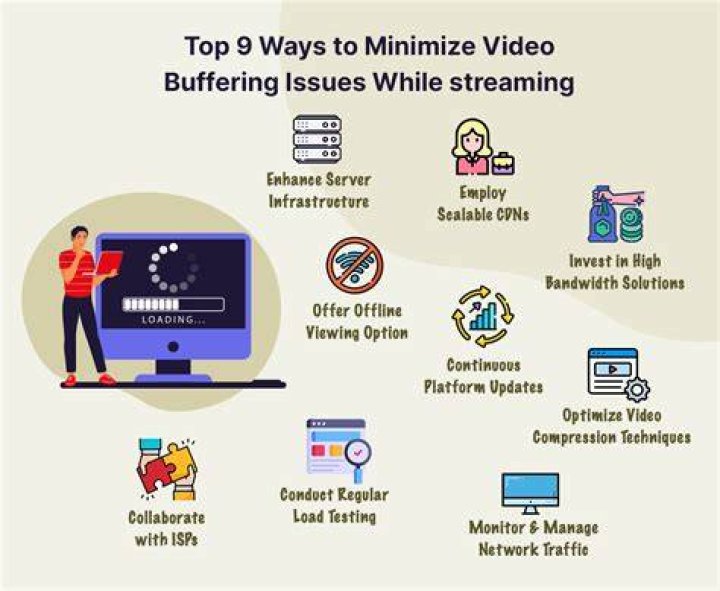
Try to categorize the symptom quickly:
- Buffers at the start: slower initial handshake, DNS issues, or insufficient throughput.
- Buffers every few minutes: unstable Wi‑Fi, throttling, or competing network devices.
- Buffers only on one title: content-specific availability, bitrate mismatch, or temporary server load.
- Freezes but resumes: download rate briefly falls below required playback bitrate.
- Audio works, video stutters: decoding load, hardware acceleration, or player cache.
Run the fastest “connection reality check” in under 2 minutes
Streaming quality is determined by real throughput during playback, not by a one-time speed test result. For troubleshooting, the most helpful “quick check” is to confirm that your network can sustain steady data transfer while another device is idle.
Start by doing two small actions: pause any downloads and ask other users in your home to stop streaming or gaming for a moment. Then reload the same title and watch how long it takes to start. If the start delay is long even after the network is quiet, the issue is likely connection stability or routing, not the specific video.
Restart the right thing: modem, router, and device in a sensible order
When buffering persists, a clean network reset can clear stuck sessions and refresh routing. Power cycle in this order: turn off the modem first (if separate from your router), wait about 30 seconds, turn it back on, wait for it to fully connect, then restart the router and finally restart your streaming device.
This sequence matters because the modem typically establishes your internet session while the router manages local traffic. If you only restart the device, your network path may remain unchanged.
Use Ethernet if you can (it’s the most reliable stability upgrade)
If your device supports Ethernet, connect it directly. Wi‑Fi can be great, but buffering is more common when signal strength drops or interference increases. A wired connection often reduces packet loss and jitter, which helps the stream arrive at a steadier rate.
Fix Wi‑Fi buffering by reducing interference and improving signal quality
Most “mystery buffering” during normal viewing comes from Wi‑Fi performance. Even if the speed looks fine on paper, real-time streaming is sensitive to latency spikes, wireless interference, and weak signal levels.
If you’re on Wi‑Fi, try these high-impact adjustments. Work through them from easiest to most effective.

- Switch to 5 GHz: It usually offers better throughput for streaming, especially closer to the router.
- Move closer to the router: One room adjustment can make a noticeable difference.
- Avoid crowded channels: If your router supports automatic channel selection, enable it. Otherwise, let the router pick for you.
- Keep line-of-sight: Walls, floors, and metal surfaces can add signal issues that show up as stutter.
- Use a better placement: Place the router higher and away from microwaves, Bluetooth hubs, and thick appliances.
Clear browser or app playback caches that can trap stale stream data
Buffering can also come from the player being stuck with old playback data. This happens when browser caches, cookies, or app storage retain outdated requests that conflict with current streaming sessions.
Start simple. Close the tab or app completely, reopen it, and try again. If it still buffers, clear the playback-related cache and cookies for your streaming site or in your browser’s settings.
Try an alternate browser or device profile
If you’re using a web browser, switching to a different browser can isolate whether the issue is browser-specific. If you’re on a mobile device, test on a smart TV, laptop, or another phone if possible. The goal is to confirm whether the issue follows the account or follows the hardware.
Adjust streaming quality to stop stutters from bitrate spikes
Many buffering issues are really “bitrate mismatch” problems. If your connection briefly can’t handle a higher-quality stream, playback may stall until enough data is downloaded again. Lowering quality helps by reducing the required bandwidth.
On most players, you’ll see an option for video quality, such as Auto, Low, Medium, or High. For troubleshooting, set it to a lower fixed quality and observe whether playback becomes stable. Once stable, you can switch back toward Auto if you want.
When “Auto” causes frequent buffering, lock quality temporarily
Auto quality is convenient, but it reacts to network changes in real time. If your internet is slightly inconsistent, Auto may oscillate between bitrates, which can feel like constant buffering. Locking quality to a lower level for the test can confirm this behavior quickly.
Check ad blockers, VPNs, and DNS settings that can disrupt streaming routes
Network tools can improve privacy, but they can also change routing in ways that degrade stream stability. If you use a VPN, try disabling it temporarily and retest playback. Similarly, if you have an ad blocker or privacy extension active in your browser, pause it for the session and see if the buffering behavior changes.
DNS settings are another common culprit. If your DNS is misconfigured or slow, it can delay the initial connection to streaming servers. Consider switching to a stable, reputable DNS resolver through your router or device settings and retest after reconnecting.
How to test whether the problem is server-side or your network
If buffering is affecting only one title, it may be server load, regional availability, or temporary encoding issues. To isolate this, try a different video from the same service and check whether playback is smooth. If other titles play normally, focus on caching, quality settings, and title-specific load rather than your full network.
Enable or tune hardware acceleration for smoother video decoding
Stuttering where audio continues can be a sign that the device struggles to decode the video stream. Modern browsers and apps often provide a hardware acceleration setting that uses the GPU for decoding. If hardware acceleration is disabled or misbehaving, playback may lag.
Try enabling hardware acceleration in your browser or device settings, then fully restart the browser/app before testing again. If it’s already enabled, toggling it off and back on can help reset decoder behavior.
Update your device and playback software
Outdated software can cause compatibility issues with modern streaming formats. Check for updates on your browser, streaming app, smart TV firmware, or operating system. After updating, reboot your device and test playback again to confirm that decoding and networking components work reliably.
Use a structured troubleshooting checklist to avoid repeating the same fixes
When you troubleshoot buffering, it’s easy to loop through random settings changes. Instead, use a short checklist and complete it in order. Each step narrows the cause from network instability to playback configuration.
- Step 1: Pause downloads and stop other streams to stabilize bandwidth.
- Step 2: Restart modem and router, then restart the device.
- Step 3: If on Wi‑Fi, switch to 5 GHz or move closer to the router.
- Step 4: Lower video quality (or set it to a fixed lower quality) to confirm bitrate mismatch.
- Step 5: Clear cache/cookies or restart the app/browser session.
- Step 6: Disable VPN and temporarily pause ad blockers/privacy extensions.
- Step 7: Enable hardware acceleration and update device software.
Where myflixer troubleshooting fits when you want consistent playback
If you’ve tried the steps above and playback still buffers, you likely need a more targeted approach that aligns with how the platform delivers video streams. That’s where myflixer troubleshooting support can be useful, because it helps you focus on the most common buffering causes without wasting time on unrelated settings.
Think of this article as your diagnostic foundation. Once you’ve identified the buffering pattern and stabilized your network and player settings, you’re in a much better position to apply any platform-specific guidance offered by myflixer.
Final Thoughts
Buffering and playback issues usually have a pattern—either they start right away, appear after a few minutes, or affect only specific titles. By narrowing the behavior, then addressing connection stability, Wi‑Fi quality, playback cache, and stream bitrate, you can eliminate most stutters and freezing problems.
For a smoother experience, keep these fixes practical and repeat the checklist only when conditions change. If you’re viewing through myflixer, use that as your next step once your device and network basics are covered.
