If you’re seeing download errors or playback that won’t start, you’re not alone. These problems usually come from a handful of root causes—network interruptions, storage limits, outdated media components, or file integrity issues—so the fix is often faster than it looks. This winnoise troubleshooting guide focuses on one goal: help you stop failed downloads and get playback working again quickly.
Instead of guessing, you’ll run through targeted checks in a sensible order. You’ll also learn what the most common symptoms usually mean, how to confirm whether the file is actually downloading correctly, and when the problem is your player versus the source.
Start Here: Identify the Exact Failure Point in the Download-to-Playback Flow
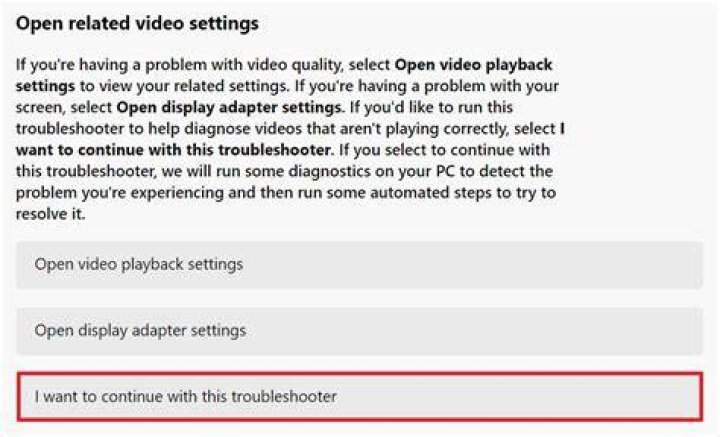
Before changing settings, clarify which step is failing. A download error can happen during connection, while writing to disk, or during the final integrity check; a playback issue can happen later due to codec support, DRM, or corrupted media. When you know the stage, you reduce trial-and-error and avoid “fixes” that don’t match the problem.
Ask yourself a simple set of questions: Does the download fail completely, or does it finish and still won’t play? Does playback fail for only one file, or all files? If only one item breaks, file integrity is the most likely culprit; if everything fails, the issue is usually network, storage, permissions, or the player environment.
Also note any error codes or messages exactly as shown. Even a short message like “network error,” “file corrupted,” “unsupported format,” or “can’t play” often points to a specific category of fixes, especially when repeated across multiple downloads.
Fix Download Errors Caused by Unstable Connections and Interrupted Transfers
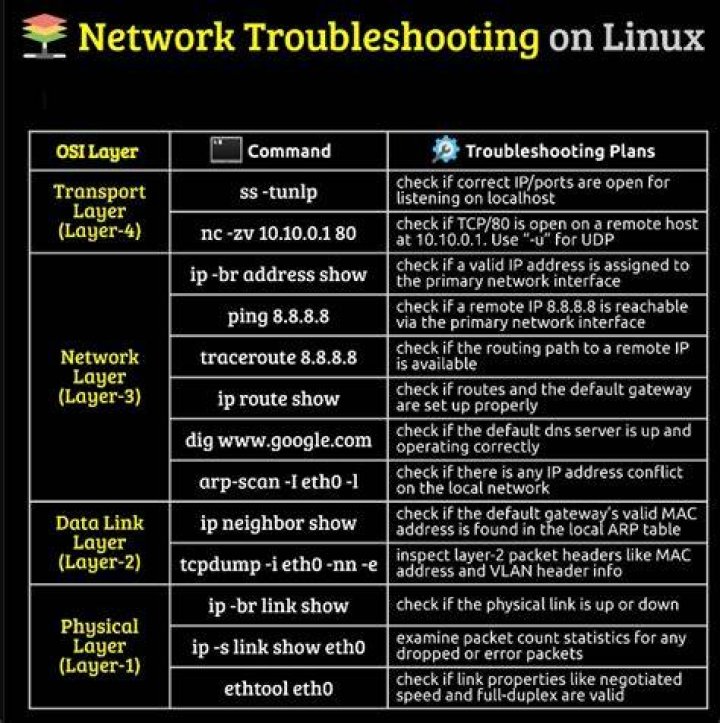
Unstable connections are one of the most common reasons for incomplete downloads. When the connection drops mid-transfer, the app may still create a partial file—then playback fails because the media data is incomplete. That’s why the same file can download “something” but still refuse to play.
Start by switching networks if possible. If you’re on Wi‑Fi, try a different Wi‑Fi network or connect via Ethernet (or a mobile hotspot) to see whether the download completes cleanly. If your router is the variable, restarting the modem or power-cycling the router can help reset unstable paths.
Next, reduce background bandwidth pressure. Large uploads, streaming, software updates, or cloud syncing can compete with your download and cause timeouts. Temporarily pause downloads in other apps, then retry the winnoise download.
Finally, keep an eye on system sleep and screen-off behavior. If your device sleeps during download, transfers may pause and resume incorrectly. On desktop, disable sleep temporarily during the retry; on mobile, keep the screen awake while the file downloads.
Confirm Storage, Permissions, and Write Access Before You Retry Downloads
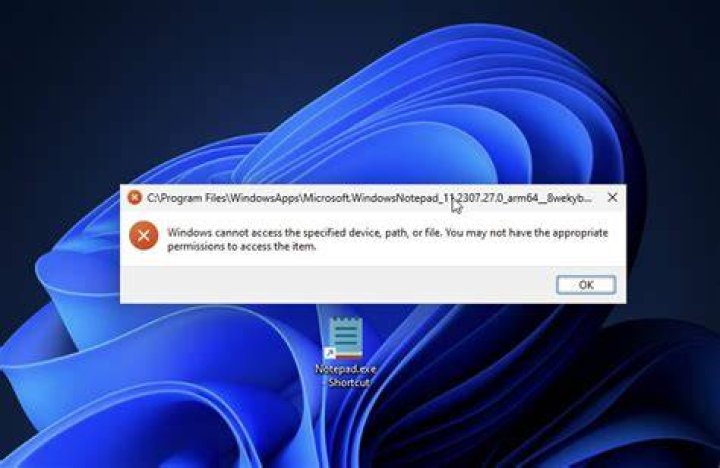
If there isn’t enough free space—or the app can’t write to the target folder—downloads can fail at the end of the process. This is easy to miss because the download may appear to begin normally and then stop when writing final blocks to disk. A storage or permission issue often produces errors that look like corruption, even though the file never fully finished saving.
Check available disk space on the device where files are saved. As a practical rule, keep at least several gigabytes free beyond the expected file size to avoid edge cases where temporary files or metadata also require space.
Then verify permissions for the download location. If you’re using a custom folder, confirm it isn’t read-only and that your account has write access. For mobile, check whether the app has permission to access storage or media folders—revoking and re-enabling can resolve stuck permission states.
Also confirm that the file path isn’t unusual. Very deep folder structures or special characters in the path can cause failures in some environments. If you’re troubleshooting, try a simpler default download folder and retry.
Validate File Integrity: When a Download “Completes” but Playback Still Fails
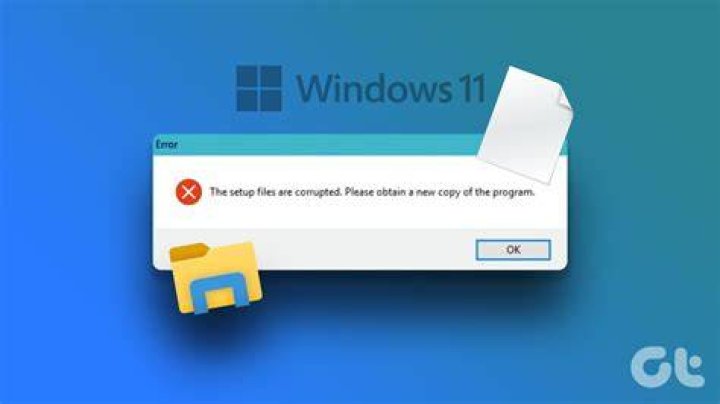
Playback errors after a “successful” download frequently point to corrupted or incomplete media files. Even if the app doesn’t show a failure message, a transfer interrupted near the end can leave the container or final metadata missing—then the player can’t decode the stream.
Confirm the file size looks reasonable. If the file size is unusually small compared to typical downloads (or the expected size), treat it as incomplete. If you have multiple sources, compare sizes across successful and failed items to spot anomalies quickly.
Try playing the same file in a different media player as a diagnostic step. If the alternate player also fails, it’s more likely corruption or unsupported encoding. If another player handles it, your original player might be missing components like codecs or has a configuration issue.
When you suspect corruption, avoid repeated partial retries that reuse the broken file. Delete or move the problematic file, then re-download fresh. This prevents the app from attempting to play a partially written container.
Resolve Playback Issues by Checking Codec Support and Media Format Compatibility
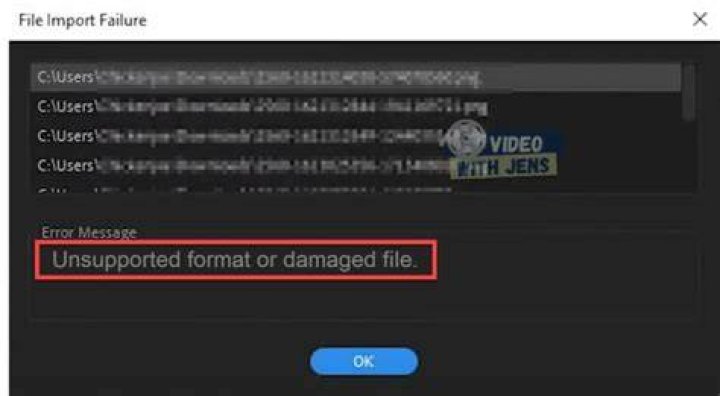
Not all playback failures are “broken downloads.” Sometimes the file downloads correctly but your playback environment can’t decode its codec or container format. This commonly shows up as errors like “unsupported format,” “no video track,” “audio only,” or a player that hangs at the first seconds.
Start with your player settings and update status. Media players often rely on built-in codecs, and some browsers or players require additional decoding support. If you can, update the winnoise-compatible playback app or the system media components to the latest stable version.
Next, test with a different playback mode. If the file is meant for an offline player, try opening it in the offline-capable application rather than streaming playback. Conversely, if you’re viewing through a browser player, test with a native player to rule out browser-specific codec limitations.
For troubleshooting, look for consistent patterns: does video fail but audio works, or does everything fail? Audio-only playback suggests a video codec issue, while complete failure suggests container or major decode issues.
Handle DRM, Playback Entitlements, and Access Restrictions Carefully
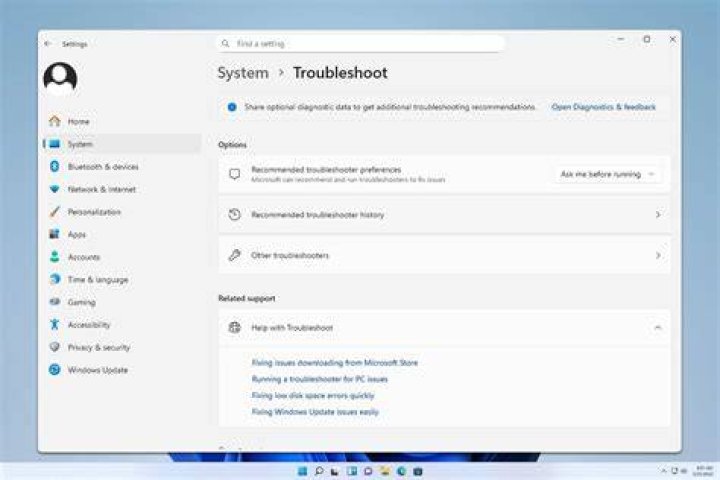
Some playback problems are access-related rather than technical. If media is protected by DRM or requires valid entitlements, playback can fail even when downloads appear normal. Symptoms often include immediate refusal to start, repeated license request failures, or playback that stops after a short duration.
To troubleshoot, confirm you’re signed in with the same account used to access the media. If you changed accounts or sign-in sessions recently, you may have downloaded media under one entitlement state and are trying to play under another.
Check whether time-based access has expired. Some licenses refresh periodically, so if your device clock is wrong, DRM checks can fail. If you recently changed time settings or traveled across time zones, set the date and time to automatic and retry playback.
If the issue persists across players, it’s more likely an entitlement or license problem than a codec problem. In that case, focus on signing in again, verifying access, and re-downloading under the correct account state.
Eliminate Cache, Temp Files, and Stale App State That Cause Repeat Failures
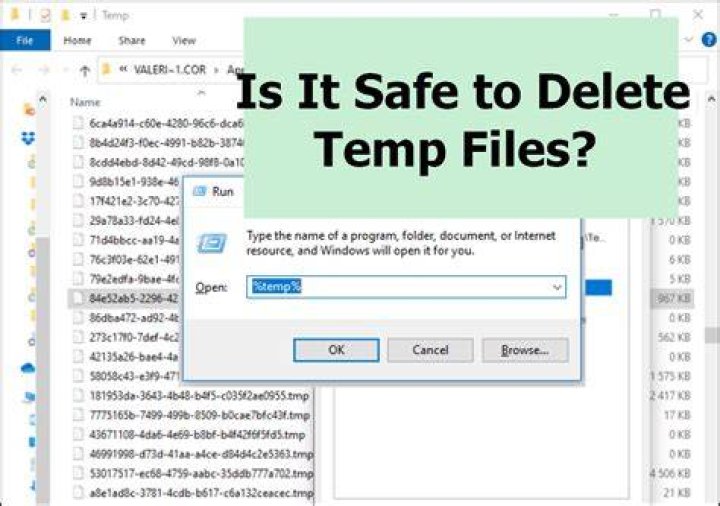
Apps can accumulate stale state that causes downloads to fail or playback to behave inconsistently. For example, a previous incomplete transfer might leave metadata in a cache that convinces the app the file is ready when it isn’t. Similarly, a playback session can get “stuck” if the player stored incorrect decoding state.
If winnoise is involved, restart the app after the initial failure. Then retry only one download at a time to prevent confusing results. When troubleshooting, avoid doing ten retries back-to-back; instead, one clean retry per fix makes the outcome easier to interpret.
If your platform supports it, clear the app cache or temporary files. This can remove corrupted or partial caches that point to the wrong file. After clearing, confirm the device storage and permissions again, because cache clearing sometimes changes temporary paths.
Finally, reboot the device if you’ve done many retries. Reboots reset network and media service states that may have hung during earlier failures.
Use a “Single Variable” Retry Plan to Find the Fastest Fix
Once you know the likely category, use a single-variable plan so you don’t accidentally mask the real cause. For instance, if you suspect network instability, keep storage and player settings unchanged while you switch to another network and retry. If the issue disappears, you’ve found the fix path.
Here’s a practical retry order that typically resolves download and playback issues quickly:
- Retry on a stable network and pause competing background downloads.
- Verify storage space and write access to the download folder.
- Delete any suspect partial file and re-download once.
- Test playback in a different player (or different player mode) to isolate codec issues.
- Check sign-in, entitlements, and device time if DRM appears likely.
As you run through these steps, track what changed and what didn’t. Even a quick note—“switched network and playback worked”—cuts troubleshooting time dramatically the next time a similar error appears in winnoise.
When to Escalate: Signs the Problem Is Beyond Local Troubleshooting
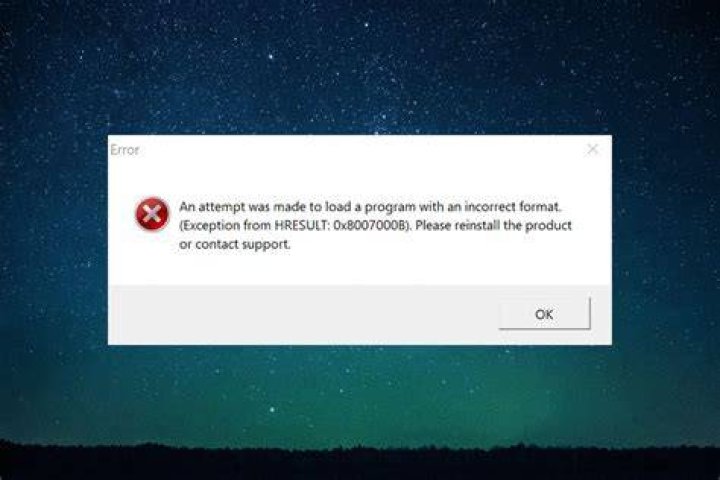
Sometimes the issue is not your device or configuration. If multiple networks fail, storage is sufficient, and files consistently won’t play even after a fresh re-download, you may be dealing with a server-side outage or a broader media pipeline problem. Another indicator is if the same error message appears across different devices logged into the same account.
Also watch for repeated errors that mention upstream processing, availability, or licensing checks. Those point away from codec problems and toward source-side behavior. In such cases, escalation is appropriate: report the error message, the time it happened, and which device and player you used.
When you do report, include the specific error text and whether the file fully downloaded or ended early. This helps support teams distinguish between network truncation, corrupted saves, and entitlement or DRM failures.
Final Thoughts
Download errors and playback issues can feel frustrating, but most cases are fixable once you narrow down the failing step. By checking connection stability, verifying storage and permissions, validating file integrity, and isolating codec or DRM-related causes, you can often restore playback quickly with minimal retries. If you’re using winnoise, follow this troubleshooting flow to identify the root cause faster and get back to watching or listening without unnecessary delays.
Keep Learning
