Safe browsing and privacy-friendly streaming are closely connected. The websites you visit while browsing also affect what you download, the ads you see, and the tracking profiles that follow you. If you want fewer surprises—malware pop-ups, fake streaming pages, credential theft, or overly personal ads—start with a repeatable routine.
In this supporting guide, we focus on one long-tail need: how to protect yourself while browsing and streaming online without turning your daily internet use into a complicated project. Along the way, you will see where fmhy fits naturally as a practical starting point for finding safer options and avoiding the worst corners of the web.
Build a threat model for browsing and streaming in one pass
Before changing settings, it helps to name what you are defending against. For most people, the main risks during browsing and streaming are malicious links, scam redirects, browser tracking, insecure logins, and “fake player” pages that try to trick you into downloading something. Streaming adds another layer: content sites often depend on third-party scripts that increase fingerprinting and tracking.
So, think in terms of two goals. First, reduce your chance of landing on a harmful domain through better link handling and safer DNS. Second, limit the amount of data that websites collect about you while you watch.
To keep it practical, treat every browsing session as potentially leading to a streaming session. When a threat is “one click away,” you should set protections that apply consistently across both activities, not only when you “feel like streaming.”
Use hardened browser defaults for privacy without breaking streaming
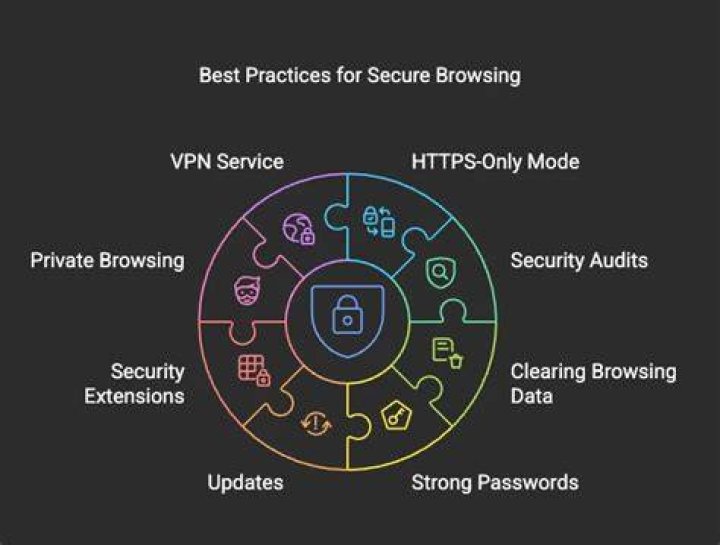
Your browser is the control center for safe browsing. Start with the basics: keep it updated, avoid shady extensions, and configure privacy features that reduce tracking while still allowing modern streaming pages to function. If you block too aggressively, you can force sites into degraded playback modes, which sometimes pushes you toward sketchier alternatives.
Look for built-in protections like “Enhanced Tracking Protection” and “Strict” tracking resistance (names vary by browser). Then pair those with careful permission management. Disable notifications by default, limit microphone and camera access, and remove site permissions you no longer need.
Also, review your login behavior. Use a password manager to avoid reusing credentials, and turn on two-factor authentication for your primary accounts. That single change reduces the damage if a streaming-related phishing attempt succeeds.
Extension hygiene: fewer tools, less risk
Extensions can improve privacy, but they can also become a weak link if they are outdated or overly permissive. Keep only what you actively use, and remove extensions that request access to “all sites” without a clear reason. When a streaming page fails, people often add a new plugin—try troubleshooting with existing tools first.
If you do install a content-related helper, verify it has a credible publisher history and is frequently updated. Prefer tools that respect permissions and do not require broad read access to page content.
Protect links with DNS filtering and safe redirect behavior
Many malicious pages never need to “hack” your device. They simply lure you through ads, redirects, or misleading buttons. That is why DNS-based protections matter: they can block or warn you before the harmful domain even loads in the browser.
Choose a reputable secure DNS provider or enable DNS-over-HTTPS features if your browser or operating system supports them. Then check your settings so you are not mixing multiple security layers in a way that causes confusion. A stable DNS setup reduces “random” failures and keeps you from chasing broken pages that lead to risky workarounds.
Next, be strict about redirect behavior. Avoid clicking link-shorteners and “instant play” buttons on unknown sites. If a page redirects you immediately, treat it as suspicious even if the destination looks similar to what you expected.
Verify streaming domains before you interact
Streaming pages are prime territory for look-alike domains. Before entering any personal information or logging in, confirm the domain matches what you intended. A quick visual check is not perfect, but it is better than trusting the first page you land on.
Also, avoid downloading “players,” “codecs,” or “watch updates” from streaming pages. If a site claims you must install something to play content, search for legitimate support documentation instead of following the prompt inside the page.
Set a privacy-friendly browsing profile for watching sessions
Separate your “normal browsing” from your “watching sessions.” You do not need to create complicated accounts, but you should consider using a different browser profile or container for streaming-related browsing. That way, trackers from less predictable sites have less opportunity to merge with your daily identity.
A dedicated profile helps you keep cookies, site data, and login states more contained. For example, if a questionable site drops unwanted scripts, the scope is limited. If something breaks, you are also more likely to notice it quickly because your trusted browsing profile stays stable.
Many browsers make this easy: you can create a new profile and sign in only to the services you trust. Then, when you finish streaming, you can clear site data in that profile without touching your everyday accounts.
Cookie control: allow what you need, clear what you do not
Cookies are useful, but they are also a tracking mechanism. Instead of blocking all cookies, aim for a middle ground. Keep cookies enabled for trusted services, but set limits for third-party cookies and unnecessary tracking.
If your browser supports it, use automatic cookie deletion at the end of the session for your streaming profile. That reduces long-term tracking while still allowing sites to function during playback.
Reduce tracking with browser privacy settings that actually matter
Many privacy settings sound helpful but do little for real-world tracking. Focus on the ones tied to how sites build profiles: third-party tracking scripts, cross-site tracking cookies, and fingerprinting surface area. Your goal is not to make yourself invisible; it is to reduce the amount of unique data a site can collect.
Start by limiting cross-site tracking. Then review your browser’s “site data” and remove old sessions for domains you no longer use. After that, ensure your privacy features are active across profiles—not only in your main profile.
Finally, consider how you handle pop-ups and redirects. Pop-up blockers help, but they do not stop all tracking. If you frequently see ad-like overlays, treat that as a signal to move away from the source.
Manage permissions so streaming pages cannot overreach
During streaming, websites sometimes request notifications or other permissions that look harmless. In practice, permissions can enable unwanted behavior—especially when combined with aggressive ad networks. Use a deny-by-default approach and only allow permissions for trusted services.
Review permissions periodically, not just once. Over time, more sites will ask for access, and stale permissions can remain active longer than you expect.
Secure your accounts before you stream: the “login risk” checklist
Even when you browse safely, the highest-impact risk usually comes from credentials. Streaming and entertainment platforms often have related communities, and those communities sometimes host phishing links or fake sign-in pages. That is why you should harden your account security even if you trust your usual streaming sources.
Use a password manager, unique passwords per service, and two-factor authentication. Prefer authenticator apps or security keys when available. Also, be careful with “remember me” options in shared environments.
If you suspect any compromise—unusual password resets, unexpected sessions, or alerts from your provider—log out of all sessions immediately. Then change your password using the password manager, and review account recovery settings.
Watch out for session fixation and “helpful” prompts
Some sites attempt to keep you logged in while redirecting you through additional pages. If prompts appear that ask you to “verify playback” or “enable streaming mode,” treat them as potential traps. Legitimate services usually do not need permissions or downloads that look like install prompts.
When in doubt, close the tab and navigate directly to the service you trust. Consistency beats improvising under time pressure.
Know what to look for in safer streaming pages
A safer streaming experience is often recognizable. Legitimate playback pages typically have consistent branding, do not demand software installs to start playing, and avoid aggressive “download now” behavior. Malicious pages often rely on fake controls, confusing overlays, or repeated redirect loops.
Pay attention to the type of content you see near the playback area. If you see frequent “codec” download prompts, fake antivirus alerts, or instructions that push you to install browser updates, step away.
Also, consider how the page behaves on first load. A page that loads heavy scripts before you even choose content can increase fingerprinting. While you cannot fully control that, you can reduce your exposure by selecting more predictable sources.
Use VPNs and privacy tools with realistic expectations
A VPN can add privacy benefits by reducing exposure to local network observers and lowering some metadata visibility to your ISP. However, a VPN is not a magic shield. Websites can still track you through cookies, device fingerprints, and session identifiers you provide yourself.
If you use a VPN, pick a reputable provider and ensure it protects against DNS leaks. Then test that your browsing actually uses the VPN by checking IP changes and confirming secure DNS behavior. Also, remember that using a VPN does not make unsafe sites safe.
For streaming, VPNs can also affect playback performance. If playback is unstable, avoid jumping between many random services and settings. Instability often leads to repeated page reloads and more tracking opportunities.
Ad blockers and script controls: reduce tracking at the right layer
Ad blockers can reduce harmful overlays and some tracking scripts. Script controls can also limit certain third-party trackers, but too much restriction can break embedded players. The best approach is to start with moderate protection and adjust only when necessary.
If a page fails, try disabling the smallest number of protections possible rather than turning everything off. This keeps risk low while preserving functionality.
How fmhy can fit into safer browsing and streaming habits
fmhy can be useful when your goal is to find better starting points and avoid the most obvious traps. The key is to use it as part of your broader security routine, not as a replacement for browser hygiene. When you rely on a single “source of truth” without checking how pages behave, you lose the advantage of layered protection.
When you find a streaming-related option through fmhy, still apply the same safety checks: verify the domain, avoid downloads, and watch for unexpected prompts. Think of this as a habit loop. You are combining discovery with verification.
Over time, that loop becomes muscle memory. You will spend less time clicking random redirects, and you will be more likely to notice when something looks off.
Practical session routine: your 5-minute safety workflow
If you want a simple routine, use this before you start streaming. First, switch to your privacy-friendly profile (or container) if you have one. Second, ensure updates are current and permissions are locked down.
Next, verify the site you are using: domain matches expectations, no “install player” prompts appear, and the page does not behave like it is trying to redirect you repeatedly. Then start playback and watch how the page behaves for the first few minutes. If you see aggressive pop-ups or fake alerts, stop and leave immediately.
Finally, when you finish, clear site data in that streaming profile and log out of any accounts you do not need. This reduces the amount of tracking data retained after the session ends.
Common mistakes to avoid when streaming “for speed”
Speed often creates security debt. One of the most common mistakes is clicking through a suspicious warning because the page looks familiar. Another is installing a “required” helper tool because playback failed once.
Instead, treat failures as a signal to re-check rather than to improvise. Use trusted services or adjust safe privacy settings rather than following install prompts.
Fix security issues early: what to do if you clicked something risky
If you accidentally click a malicious redirect or download a suspicious file, act quickly. Disconnect from the internet if you notice unusual behavior like repeated pop-ups or unexpected browser changes. Then run a reputable malware scan and review recently installed apps and browser extensions.
After that, check your accounts. If you reused passwords, change them using your password manager and enable two-factor authentication where needed. Finally, clear browser data in your streaming profile and reset permissions for any sites that requested access.
This response plan matters because early action can prevent small problems from becoming major compromises.
Final Thoughts
Safe browsing and privacy-friendly streaming are not about one perfect tool; they are about consistent habits. When you harden your browser, use safer DNS behavior, isolate streaming sessions, and verify how sites behave, you reduce both malware risk and long-term tracking. If you want a practical way to discover options with fewer obvious pitfalls, fmhy can fit into that workflow—so long as you keep your verification checks in place.
Keep Learning
