Buffering, playback errors, and sudden app crashes are some of the most frustrating problems you can hit while streaming or playing media. When it happens repeatedly, it’s rarely “just bad luck.” More often, it comes from a small mismatch between your network, the player/app, storage performance, or the way your device handles codecs and DRM.
This guide focuses on one specific long-tail goal: fixing buffering loops, playback errors, and crashes in a reliable, step-by-step way. If you also explore media resources through fmhy, you’ll find that good troubleshooting makes any source feel more stable—because the root cause is usually on your device or connection, not the content.
Confirm the Problem Pattern Before You Change Anything

Before changing settings, figure out the pattern. Does it buffer only on certain videos, only on Wi‑Fi, only in one app, or only after a few minutes? These details tell you whether the issue is likely bandwidth, decoding/codecs, storage, or an app-level bug.
Also note the error wording. Common playback failures include “unsupported format,” “license/DRM error,” “network error,” or “cannot play video.” If you can, record the time it starts, whether audio works while video freezes, and whether the app fully crashes or just stops playback.
Finally, try one controlled test: play the same media on a second app or device. If the problem follows the content across devices, you may be dealing with a stream that’s unstable or encoded in a way your player struggles with. If it stays on one device/app, the fix is usually configuration, player cache, or network behavior.
Stabilize Your Connection to Stop Buffering Loops
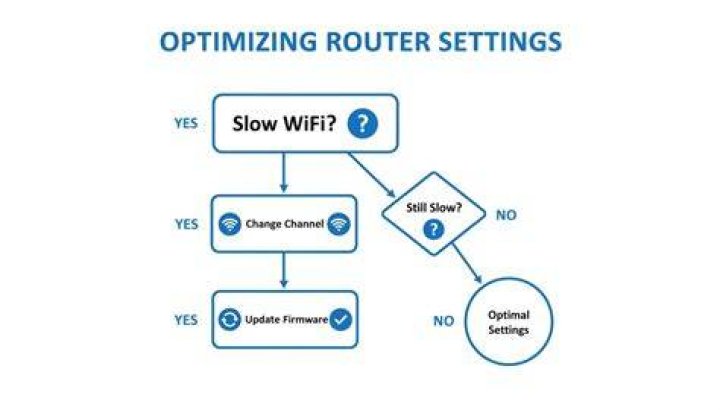
Buffering is often a symptom of unstable throughput rather than low speed. A connection can test “fast” but still drop packets, spike latency, or struggle with Wi‑Fi interference—especially during the first seconds of playback.
Start with the simplest improvements. If you’re on Wi‑Fi, move closer to the router, avoid walls and metal barriers, and reduce nearby interference (for example, switch off other heavy downloads if possible). Even small changes can prevent the player from repeatedly re-buffering.
If you can, switch to Ethernet. A wired connection removes a major variable and quickly confirms whether Wi‑Fi quality is the real cause. If wired fixes buffering, you’ll know to focus on Wi‑Fi signal strength, router settings, or device Wi‑Fi power-saving behavior.
Run Quick Network Tests That Match Streaming Reality
Speed tests aren’t always the same as streaming stability. Instead, test under conditions similar to playback: test at the same time of day, using the same device, and don’t rely solely on one run.
Check for bandwidth contention. In many homes, buffering happens when other devices start heavy uploads, cloud backups, or downloads. If buffering starts right after another device becomes active, schedule those tasks for later or pause them while you watch.
Also consider DNS. Some playback issues appear as “network” errors that are really name resolution problems. Switching to a reputable DNS service (or using the device’s default DNS if you previously changed it) can reduce intermittent failures, particularly on older routers.
Clear Browser or Player Data That Can Hold Stale Streams
Many buffering and playback problems come from stale session data. If you’re streaming in a browser, clear the site’s cookies and cache (or try an incognito/private window). Then sign in again and attempt playback.
If you’re using a dedicated app, clear its cache rather than only rebooting. On mobile and TV devices, cached media fragments can become inconsistent after updates. A clean cache forces the player to rebuild sessions in a healthier state.
Fix Playback Errors by Aligning the Player, Codec, and Format Expectations
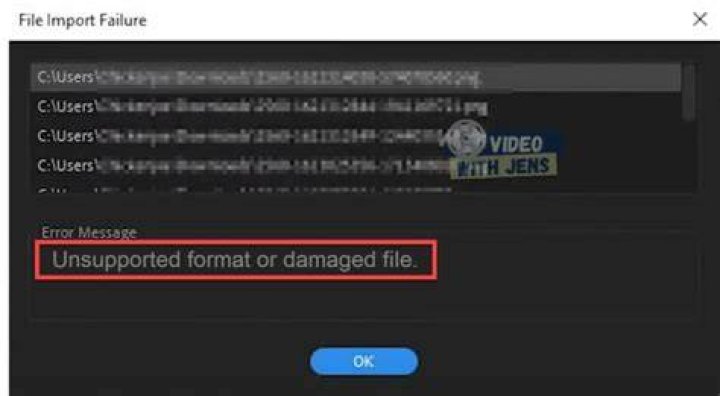
Playback errors are often “format reality checks.” Your device player may support certain codecs and containers, but not others, or it may fail when DRM licenses don’t validate. When errors show up immediately at start, think compatibility; when errors appear after a few minutes, think buffering, network, or decoding load.
First, make sure your player/app is updated. Developers frequently fix decoding crashes, improve buffering logic, and patch DRM handling. Update the app from the official store and restart the device after installing.
Next, try a different playback path. If you’re using a browser player, try the app version of the same service (or vice versa). If the media is playable in one player but fails in another, you’ve learned the issue is player-specific rather than a network outage.
Handle “Unsupported Format” and Transcoding Failures
When you see “unsupported format,” “cannot play this video,” or a similar message, the codec may not be supported on your device. In some cases, disabling hardware decoding (or enabling it, depending on the device) can change the outcome. If your device offers a “hardware acceleration” toggle, test it carefully.
Also check subtitle and audio track handling. Some playback errors happen only when a specific subtitle track is enabled. Temporarily switch subtitles off, then retry. If it starts working, you can re-enable subtitles selectively.
If the stream uses multiple quality levels, try forcing a lower quality temporarily. High-bitrate streams can overwhelm decoding on weaker devices. Lowering quality reduces the chance of buffering and also reduces the risk of crashes triggered by decoding stress.
Address DRM and License Errors Without Guessing
DRM problems often show up as license errors, authorization failures, or content restrictions. These aren’t “fixes” you can brute force by repeatedly hitting play. Instead, verify that the device time and timezone are correct—incorrect time can break certificate validation.
Sign out and sign back in to the relevant account, then restart the app. Corrupted sessions can cause license checks to fail even when your internet is fine.
If you use a VPN or privacy DNS, temporarily disable it and test again. Some DRM systems block certain network behaviors or IP routes. If the content plays with VPN off, you’ve isolated a likely network-policy conflict.
Stop App Crashes by Reducing Load and Clearing Corrupted State
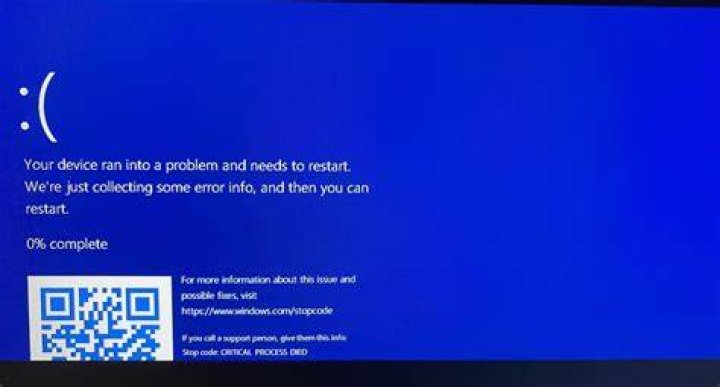
Crashes usually mean something went wrong in memory handling, decoding, or a plugin component. Unlike buffering and simple playback errors, crashes often point to a stress condition: too much decoding at once, insufficient RAM, a corrupted cache, or a known bug in a specific app version.
Start by restarting the device. It sounds basic, but it clears leaked resources and resets background tasks that compete for memory. Then close other apps, especially ones doing downloads, screen recording, or heavy background syncing.
Next, clear the player/app cache and relaunch. If crashes are tied to a particular playback session, cache clearing can remove the corrupted state causing repeated failures.
Adjust Hardware Acceleration and Quality Levels
Hardware acceleration can help performance, but it can also trigger crashes on certain GPU/driver combinations. If your device offers a toggle, try changing it and test with a short video first.
Similarly, try lowering playback quality. If a device crashes only when streaming high resolution (like 4K), that’s a strong signal the decoder can’t keep up reliably. Use the player’s quality selector to cap resolution and see whether stability improves.
If the crashes are accompanied by high CPU or “thermal” behavior, reduce brightness and avoid charging the device while streaming. Heat can degrade performance and increase crash likelihood on mobile devices.
Check Storage Health and Free Up Space
Low storage can indirectly cause crashes by breaking caching and temporary file operations. Many media players need space to buffer segments, store thumbnails, and maintain logs.
Free up storage on the device and then retry playback. On mobile and streaming boxes, even a small amount of extra free space can prevent the player from failing silently while loading streams.
If the problem appears after an OS update, check whether the app’s storage and permissions were reset. Re-grant any relevant permissions and update the app again to ensure it’s compatible with the latest system components.
Use Device-Specific Steps for Common Platforms
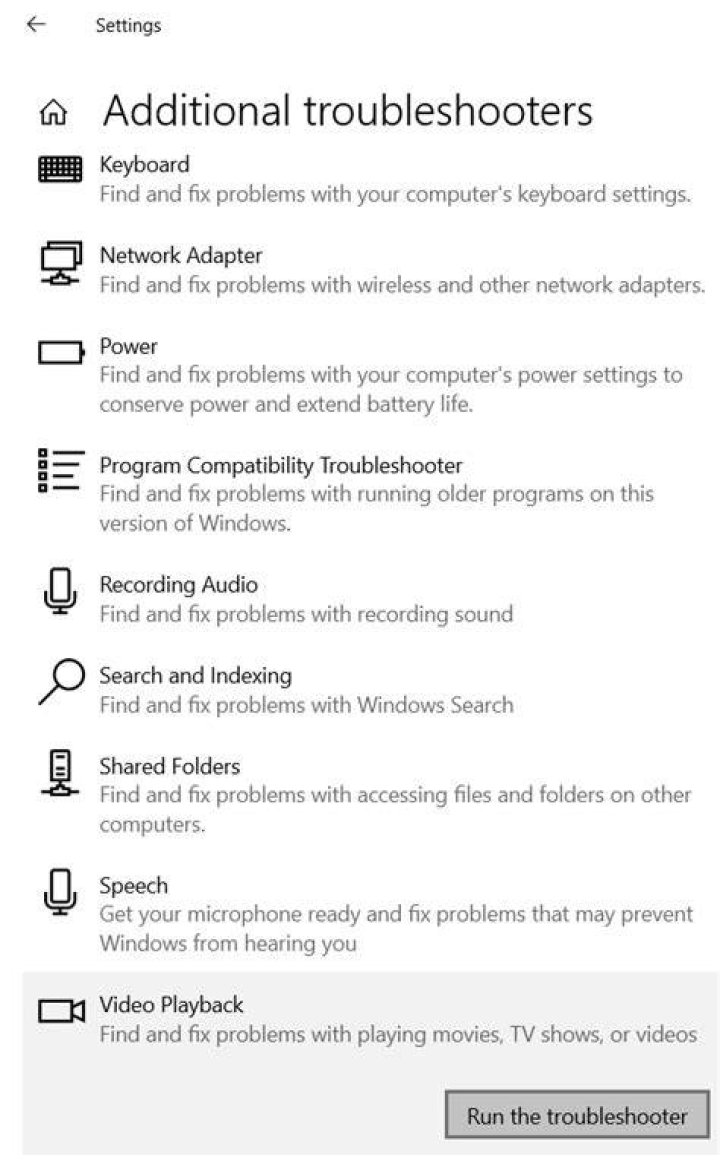
Because buffering, playback errors, and crashes can be caused by platform differences, a few targeted steps save time. The goal is to reduce guesswork and isolate whether the issue is browser-based, player-based, or system-level.
On Windows PCs, make sure your media player and browser are updated, and restart after updates. On Android phones and tablets, clear app cache, test in the same app with reduced quality, and check hardware acceleration settings if available.
On smart TVs and streaming boxes, reboot the device and clear the app cache in the TV’s app settings. TV apps sometimes hold onto corrupted session state longer than phones, so a cache clear often helps.
Quick Wins That Apply Everywhere
- Restart the device after major updates.
- Update the app and your OS/browser.
- Test the same video on a second app or device.
- Lower quality to reduce decoding load.
- Disable VPN/proxy if errors mention licenses or authorization.
Build a Reproducible Test Plan for Fast, Confident Resolution
If you want fewer repeats, treat troubleshooting like debugging. A reproducible test plan helps you confirm fixes instead of bouncing between settings randomly.
Use a simple sequence: test one video, then change only one variable at a time. For example, first test with wired vs. Wi‑Fi. Next, test app cache clear vs. no cache clear. Then test hardware acceleration on/off. Each step narrows the cause and makes the final fix more dependable.
Also test playback at two time points. If it works for five minutes but fails after fifteen, you’re dealing with either network stability over time or a decoding memory leak. If it fails instantly, focus on compatibility, DRM, or player configuration.
When to Escalate: Symptoms That Point to an External Issue
Sometimes the problem isn’t on your device. If playback fails across multiple devices, multiple networks, and multiple players for the same content, the source/encoding may be the issue.
Also consider server-side outages or temporary stream instability. If buffering is widespread across all videos, check for service status notifications in the app or on the service’s support pages. In those cases, troubleshooting is limited—you can reduce local friction, but the fix may require waiting for the provider to stabilize their streams.
Even then, following the steps in this guide will help you determine whether it’s truly external. For users who rely on fmhy as part of their media workflow, the practical takeaway is consistent: good device and network health makes content access feel smoother and reduces “mystery” crashes.
Final Thoughts
Buffering loops, playback errors, and crashes usually share one theme: something is unstable in the chain—network stability, player compatibility, corrupted cache, or decoding load. By confirming the problem pattern, stabilizing your connection, aligning codec/DRM expectations, and clearing corrupted state, you can fix most issues quickly and confidently.
If you want a smoother viewing experience while exploring media resources through fmhy, keep this troubleshooting approach handy. It turns frustrating playback failures into a predictable process you can repeat whenever the next error appears.
Keep Learning
