If your hitv stream keeps buffering, starts late, or stutters during playback, you’re not alone. Streaming quality problems usually come from a few predictable causes—network instability, device or app settings, and playback settings that don’t match your connection. The good news is that most issues can be fixed with targeted steps instead of endless reinstalling.
This guide focuses on one specific outcome: improving playback stability so videos load faster and stay smooth. Use the sections below in order, and stop once your stream feels responsive. You’ll also learn what to check when the problem is intermittent, because buffering that comes and goes often has a different root cause than buffering that always happens.
Identify the Real Cause: Buffering vs Lag vs Playback Drops
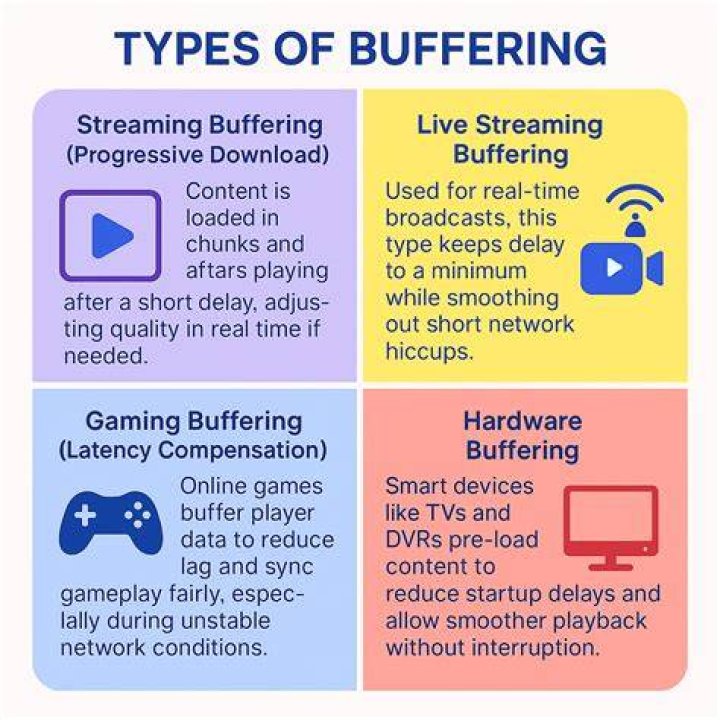
Before changing settings, match the symptoms to likely causes. Buffering usually means the player can’t keep up with your current download speed, so it repeatedly pauses to load more video data. Lag may look like delayed response, choppy frames, or audio/video feeling out of sync—often linked to device performance or network jitter. Playback drops are different again: the stream might freeze and then restart, or it may fail to load a segment entirely.
As a quick test, note when the issue happens. If it begins immediately after pressing play, suspect connection setup, DNS, or app-level playback settings. If the stream starts fine but degrades after a few minutes, suspect Wi‑Fi congestion, router heat or throttling, or a fluctuating network path.
Fix Wi‑Fi Instability That Triggers Buffering
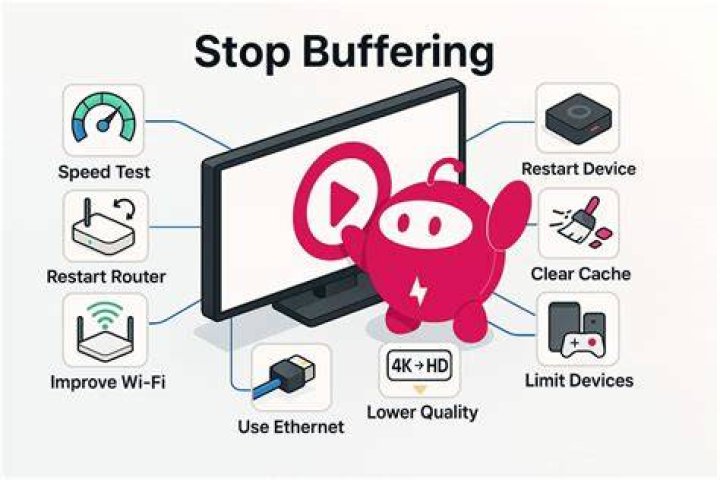
Most buffering issues trace back to Wi‑Fi instability rather than the raw internet speed. Even if your internet is fast, unstable signal strength or interference can cause momentary slowdowns that the player “feels” as buffering. Start with the simplest checks: move closer to the router, remove physical obstructions, and avoid streaming on a weak signal.
Next, reduce contention. If other devices are downloading large files or gaming online at the same time, your effective bandwidth drops. Try a short test window when fewer devices are active, then observe whether playback improves.
Choose the Best Band: 5 GHz or Ethernet for Consistent Playback
If your router offers both 2.4 GHz and 5 GHz, pick 5 GHz for smoother streaming in most homes. 2.4 GHz can be slower and more crowded, which increases jitter and buffering risk. For the best stability, use Ethernet if your device supports it, since wired connections typically reduce packet loss and signal interference.
When Ethernet isn’t an option, keep your device and router within reasonable range. Also check whether your router supports “band steering” (auto switching between bands). In some setups, automatic band switching can cause brief disconnects; if that happens, manually selecting a single band can help.
Test Signal Strength and Router Congestion
Look for obvious signs of Wi‑Fi congestion: other streams stutter, video calls drop, or web pages load slowly across multiple devices. If only hitv stutters while everything else looks fine, the issue is more likely app playback settings or device decoding performance. However, if multiple services struggle, treat the network as the priority.
Also consider router placement. A router in a cabinet, behind a TV, or near metal surfaces can weaken coverage. Repositioning the router to a more open location often improves the stability of streaming sessions.
Optimize Device Performance so Videos Play Smoothly

Even with a strong connection, playback can lag if your device is overloaded. Older phones, low-memory TVs, or streaming sticks running too many background apps can’t decode video efficiently. When decoding can’t keep up, you may see stutters, delayed audio, or skipped frames that resemble “lag.”
Start by closing unused apps and restarting the device. Then check whether storage is near full, since low storage can slow system processes and affect media buffering behavior.
Restart the Right Way (Not Just Closing the App)
Closing the app doesn’t always clear background processes tied to streaming playback. A full restart clears caches and resets network negotiation steps. After restarting, open hitv again and try a short playback session.
If buffering persists, also reboot the router once. For many homes, this is the difference between a network path that stays stable and one that gradually degrades over time.
Update Firmware and Streaming Apps
Outdated software can cause codec mismatches, inefficient buffering, or compatibility issues with streaming formats. Check for system updates on your TV, phone, console, or streaming stick, and ensure the hitv app is updated as well. While updates can’t fix every issue, they often resolve playback bugs tied to specific devices.
If updates recently occurred and playback worsened afterward, try reverting the setup by removing problematic settings changes, such as switching display modes or enabling aggressive battery saver modes.
Adjust Playback Settings Inside hitv for Better Stability
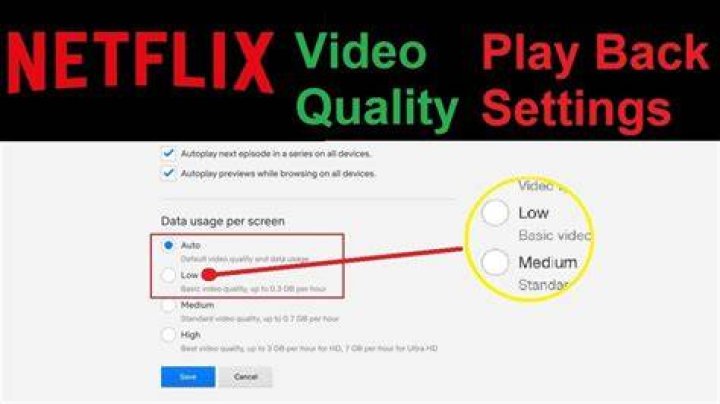
Streaming apps often include quality controls that affect bitrate selection. If your connection can’t reliably sustain the highest quality, the player will oscillate between buffering and reduced playback performance. In that case, lowering the stream quality can improve consistency, even if the picture looks slightly less sharp.
If hitv provides an option like “auto quality” or “data saver,” use it to match your current network conditions. When you’re on Wi‑Fi with variable strength, Auto can help, but it may still overshoot if your connection fluctuates. Choosing a stable quality level often reduces buffering loops.
Turn Off Features That Can Interrupt Playback
Some device features can interfere with long playback sessions. Battery saver modes can throttle performance, power saving options may limit background network activity, and screen optimizations can cause delayed decoding. Check power settings on mobile devices and streaming sticks, then retest playback.
If you use a VPN or proxy, disable it temporarily for a test. VPN routing can increase latency and reduce throughput depending on the server path, leading to buffering that feels random.
Improve Network Path Quality with DNS and Router Settings
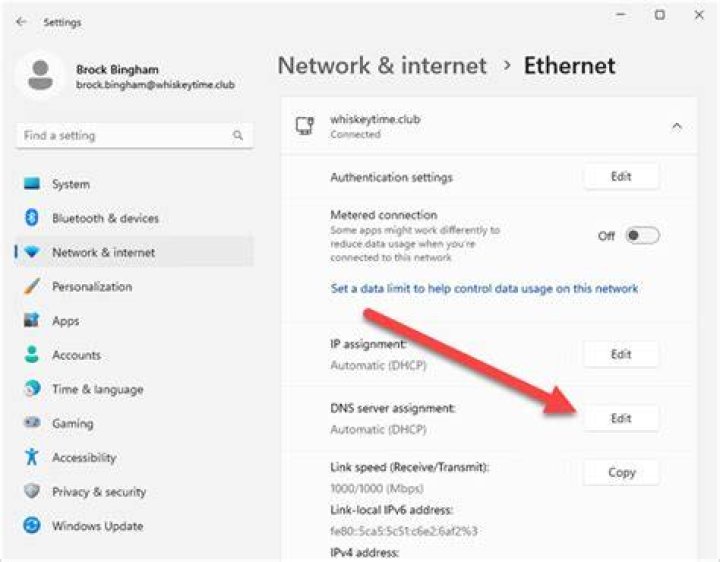
Sometimes the issue isn’t only speed—it’s how reliably your device reaches streaming servers. DNS problems can delay connection setup, which shows up as slow start times or repeated loading. Changing DNS can help in some cases, especially if your ISP’s DNS responses are inconsistent or slow.
Before changing anything, confirm whether the problem happens on multiple devices. If buffering affects only one device, you can focus on device settings. If multiple devices experience the same behavior, then router configuration, DNS, or general network path quality becomes more likely.
Consider a Simple DNS Change and Retest
Use a reputable public DNS provider on your device or router, then restart the device and try playback again. Keep the test short so you can tell whether the change reduces “time to first frame” and prevents repeated buffering later in the session.
If DNS changes don’t help, return to focus on Wi‑Fi stability, bandwidth contention, and device performance. Streaming problems are rarely caused by a single factor, but one fix usually stands out once you test.
Handle Intermittent Buffering with Targeted Bandwidth Checks
Intermittent buffering can be harder than constant buffering. It often happens when network conditions briefly worsen—like when someone starts a download, a router performs background tasks, or the Wi‑Fi signal dips due to distance or interference. A simple speed test can be misleading because it measures a moment in time rather than consistency.
Instead, try a “watch test.” Start a stream and note whether buffering appears at consistent intervals. Consistent repeating patterns can indicate router congestion or an ISP traffic policy, while random spikes often point to Wi‑Fi interference.
Reduce Competing Traffic During Playback
Pause large downloads, suspend cloud backups, and avoid starting game updates while streaming. If you live with multiple people streaming and working online, schedule high-bandwidth activities when you’re not watching. Small changes can noticeably improve playback stability.
For households with heavy use, consider upgrading router hardware or enabling features like quality of service (QoS) if available. QoS can prioritize streaming traffic so your video player stays responsive even when other traffic is active.
When to Escalate: Clear App Cache, Reinstall, or Switch Playback Method
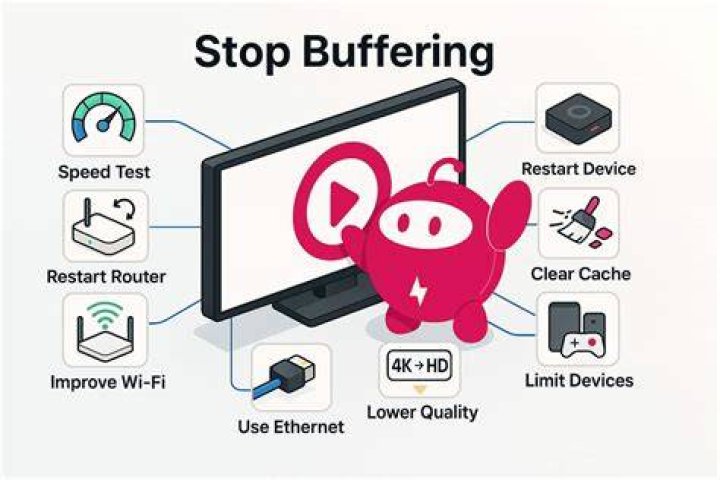
If you’ve tried network improvements, device restarts, and playback setting adjustments, the remaining issues may be app-level. Clear the app cache if your device supports it, then restart the device and test again. A cache clear can remove corrupted playback data that causes repeated stutters.
If problems continue, reinstall the hitv app. Reinstalling can replace broken files and refresh the playback framework used by your device. Keep in mind that you should still verify network stability—reinstalling won’t fix a consistently weak Wi‑Fi signal.
Use an Alternative Device as a Diagnostic Step
Try hitv on a different device using the same network. If playback is smooth elsewhere, your original device likely has performance or configuration issues. If buffering persists across multiple devices, the network path is the priority.
This diagnostic approach saves time because it prevents you from guessing. It also helps you decide whether to focus on router and Wi‑Fi or on device settings like codec support, storage, and power modes.
Final Thoughts
Buffering, lag, and playback drops can feel frustrating, but most streaming quality problems are solvable when you follow the right sequence. Start by distinguishing buffering from lag, then stabilize Wi‑Fi or switch to wired where possible, optimize device performance, and adjust hitv playback quality to match your connection. With a few targeted tests, you can usually restore smooth playback without turning it into a long troubleshooting loop.
If you want a fast, practical path forward, treat this guide as your checklist before you move on to broader streaming troubleshooting. For many viewers, hitv becomes reliably watchable once the connection and playback settings are aligned.
Keep Learning
